The technical prowess of MS Outlook is unbeatable. Nothing is wrong in saying that this email client is the undisputed backbone of professional communication. This is why millions of global executives prefer Outlook to others. But what provides a boost to this email client. The main pillars of strength for this email client are its data file formats—OST and PST. While the former interacts with the Exchange server, the latter stores the mailbox data on the local device. There is no denying of the fact that the majority of users rely on PST (Personal Storage Table) for the mailbox data. Relying on PST has multiple benefits. Firstly, it reduces the server space. Secondly, PST is great for archiving owing to its portable nature. Thirdly, users prefer to maintain local control over their email archives. Even though PST data files offer flexibility, but they also carry risks. They are fragile. They are suspectable to corruption.
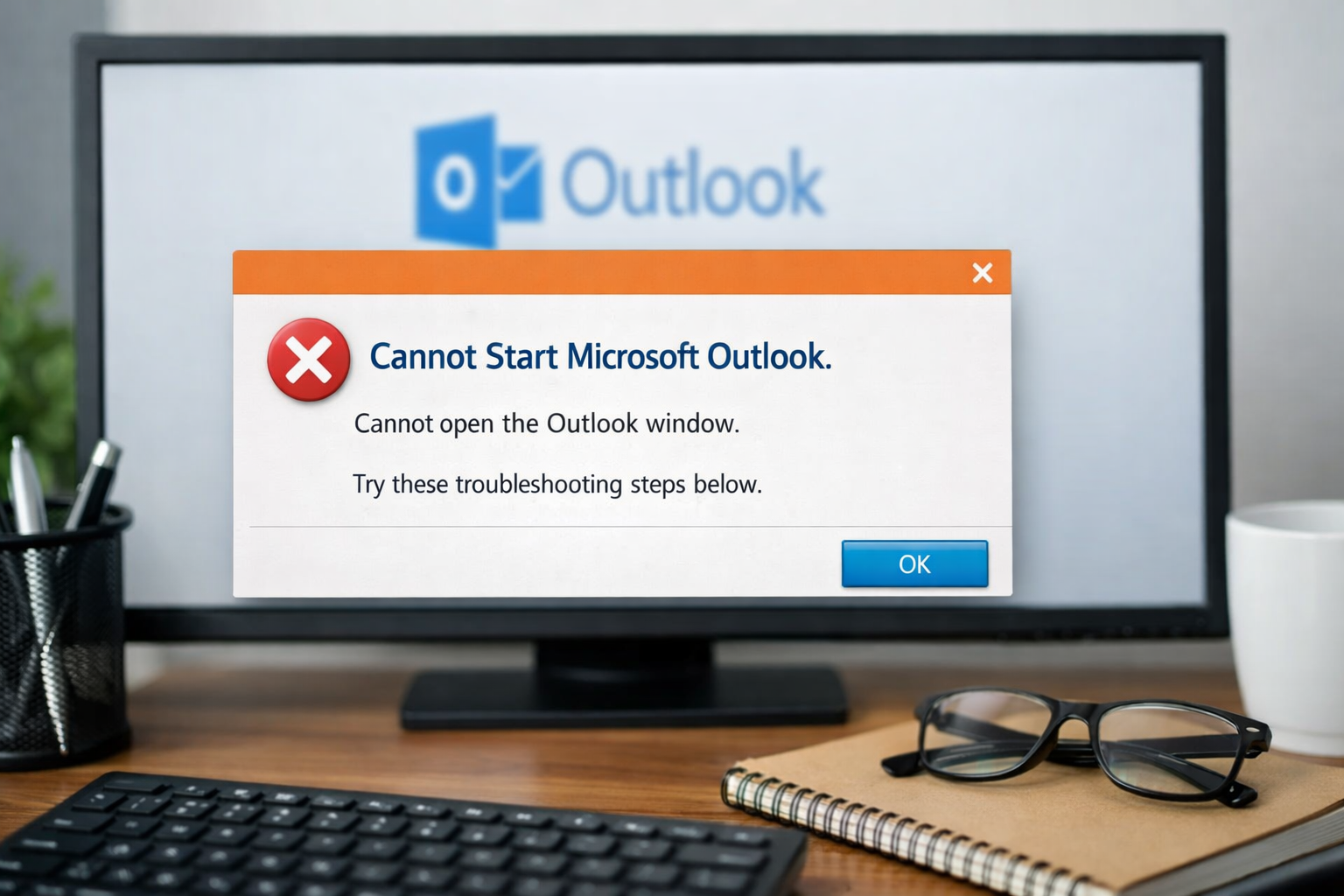
A damaged PST file is a worrisome. It means breaking down of the internal data structure. This scenario poses a direct threat to the valuable data. The consequences not only include frequent error messages but also application crashes, missing email messages, or Outlook instability. Users often face a dreaded popup reading “Cannot Start Outlook / Cannot Open the Outlook Window.” The main reason for this error is data file (.pst) corruption. In certain cases, a damaged Outlook profile can cause this issue. While in other cases, it may be because of an incorrect navigation pane setting. This error means that Outlook is struggling to read your Personal Storage Table (.pst). The situation demands an urgent action. The resolution lies in Outlook PST Repair. Checkout this guide to know more about the issue and its troubleshooting steps.
Consequences of the Error:
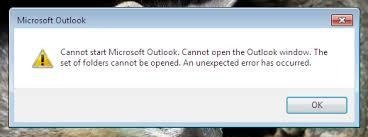
Let’s understand by a use case. You are working on an important project. You came to office after a relaxed weekend. You start your laptop and ready to tackle the inbox. Suddenly you are greeted by a fearful message reading “Cannot start Microsoft Outlook/ Cannot open the Outlook window.” You will be shocked. This error will result in the following:
- Access Loss: This error denies you the access to the mailbox. It prevents you from sending fresh emails. You can’t even read email messages or access calendar or contacts.
- Application Freeze: The email client will experience a sudden freeze.
- Data Corruption: This dreaded error poses a direct threat to the sensitive data.
- Loss of Productivity: The user may loss important emails or calendar events, leading to the productivity loss.
Causes and Solutions:
This part of the post will shed light on common causes of the error. It will also provide solutions to Fix “Cannot Start Outlook / Cannot Open the Outlook Window” error. Follow the below guide:
Cause 1: A Damaged Outlook Profile: It is one of the common causes of this error. Let’s understand why. An Outlook profile acts like a GPS for Outlook. It provides the software a correct navigation path for data. If such path is broken, the Outlook is unable to provide the correct path, resulting in “Cannot Start Outlook Window” error.
Solution: Create a New Profile: With this, you can solve this issue without affecting your existing email data. Follow the below steps:
Step 1: Exit Outlook app
Step 2: Launch Control Panel
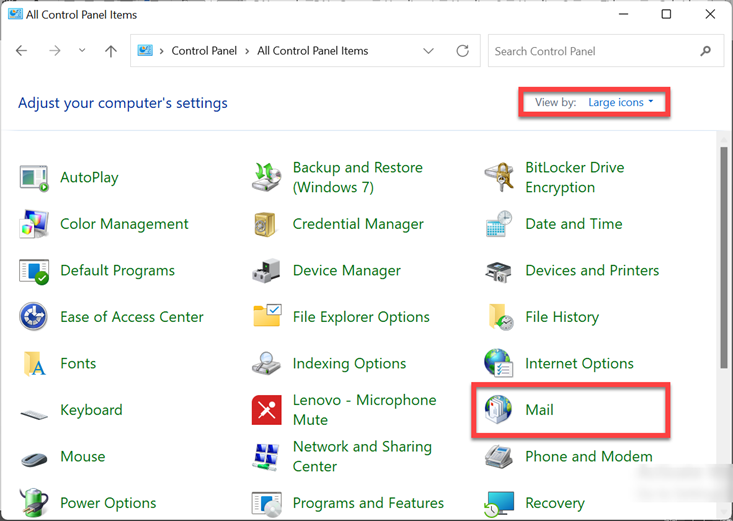
Step 3: set the View by option to Large/Small Icons and look for Mail
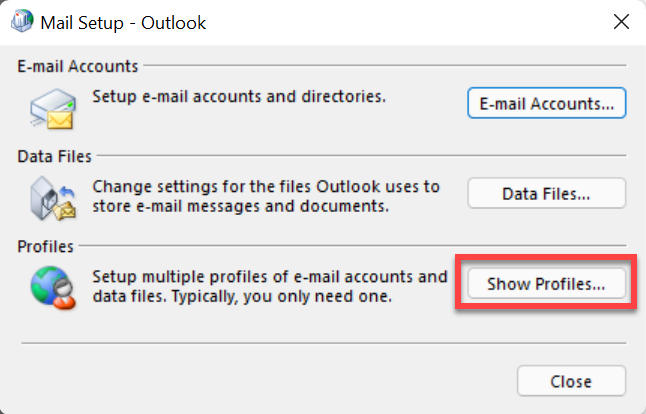
Step 4: Browse Setup window
Step 5: Select Show Profiles
Step 6: Press “Add” to initiate the new Outlook profile creation
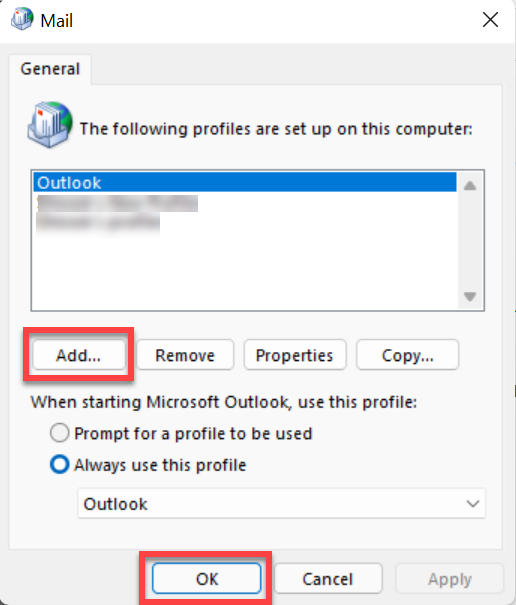
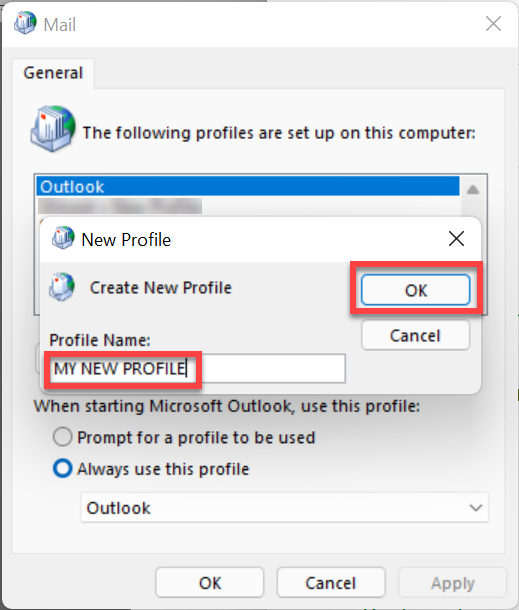
Step 7: Enter a name for the new profile
Step 8: Press OK to launch the Add Account window
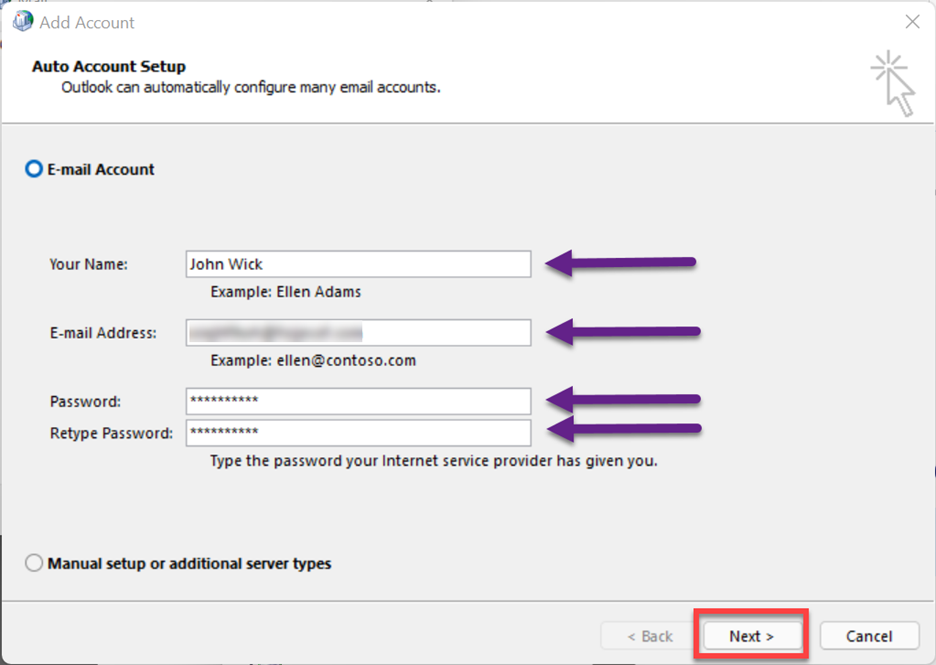
Step 9: Enter the profile name as well as login credentials and then, click Next.
Step 10: With this action, your profile creation process is finished. A Window reading ‘your email account was successfully configured and ready to use’ will appear
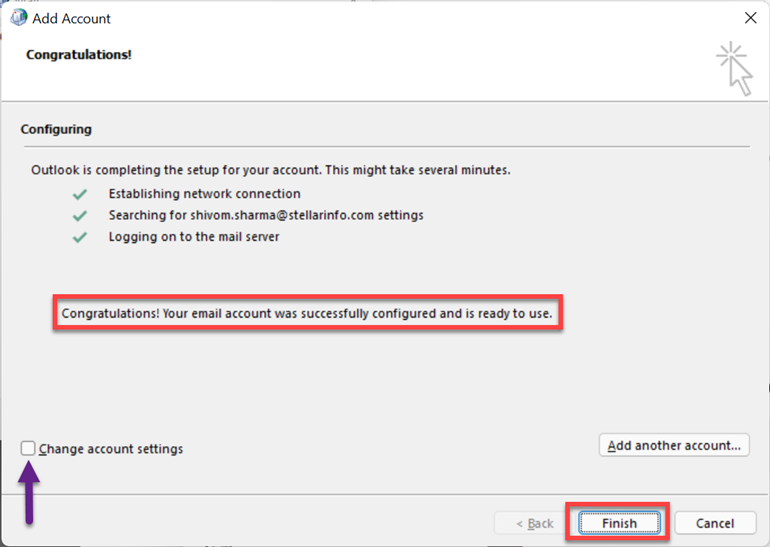
Step 11: After this, we need to remove the problematic old profile
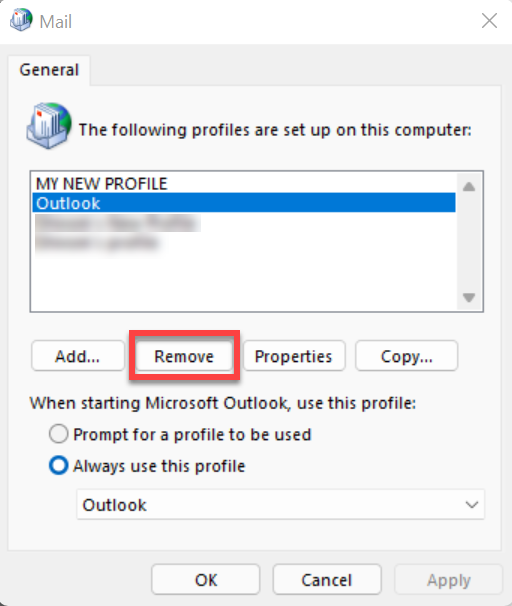
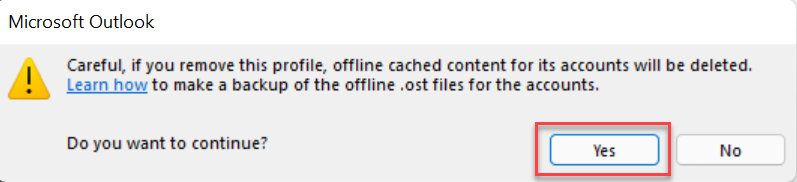
Step 12: Choose your old Outlook profile. Press Remove to delete it
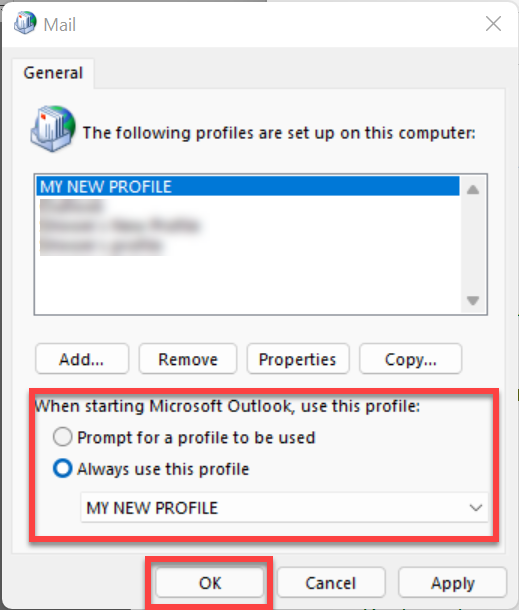
Step 13: Now choose “Always use this profile” option
Step 14: Select the newly-created profile from the dropdown, and press the OK button
Step 15: Relaunch the Outlook app
Cause 2: Issues with the Navigation Pane Settings: This pane houses mailbox folders. It serves as a UI blueprint for Outlook. Any issue will make it difficult for Outlook to read. The email client quits before the window can even pop up and gives “Cannot Start Outlook / Cannot Open the Outlook Window” error.
Solution: Reset the Navigation Pane: Follow the below steps:
- Browse the Run dialog box (Windows key + R)
- Now write outlook.exe /resetnavpane
- After this press Enter
Note: This command resets the default navigation pane settings.
Cause 3: A Damaged PST File: A corrupt PST is the mother of multiple issues. This is so because it is the nucleus of Outlook. Any issue with the PST disturbs the whole ecosystem. A corrupt PST prevents Outlook from properly loading mailbox data. It disrupts data access and initialization processes. Due to this, the email client fails to open and displays the “Cannot Start Microsoft Outlook / Cannot Open the Outlook Window” error.
Solution: Repair Using ScanPST.exe: The user needs to utilize ScanPST.exe built-in functionality. It scans for issues and inconsistencies. Then it diagnoses them. After that, this utility tries to repair such structural inconsistencies. The detailed overview of its functioning is listed below:
- First Discover this utility on the following locations:
| Version | Location |
| Office 365\2019\2016: | –For 64-bit Outlook C:\Program Files\Microsoft Office\Office16–For 64-bit Outlook C:\Program Files\Microsoft Office\root\Office16–For 32-bit Outlook C:\Program Files(x86)\Microsoft Office\root\Office16–For 32-bit Windows C:\Program Files (x86)\Microsoft Office\Office16 |
| Office 2013: | –For 64-bit Windows: C:\Program Files\Microsoft Office\root\office15–For 32-bit Windows: C:\Program Files (x86)\Microsoft Office\root\office15 |
- After discovering this functionality, close all active applications as well as processes.
- Now click Windows + R keys to browse the ‘Run’ dialogue box.
- Write %programfiles%/Microsoft Office/ in the dialogue box. Press Enter.
- Now move the cursor on the targeted PST file.
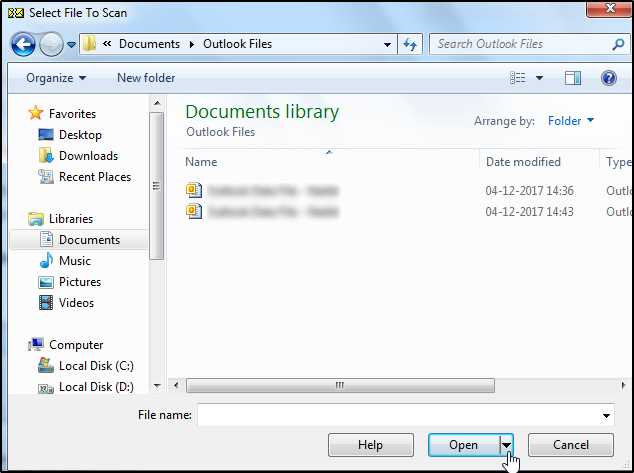
- Start the file scan process.
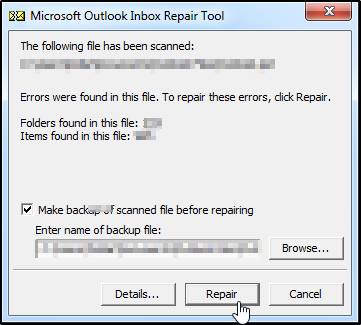
- This utility will highlight errors and inconsistencies in the Outlook data file (.pst). Press the ‘Repair’ button to start the process.
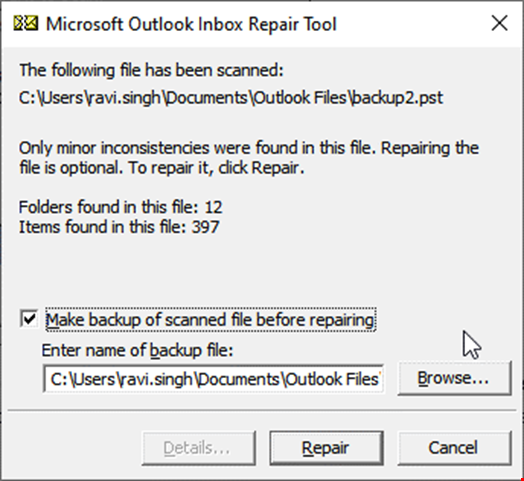
- Select the option to create the backup of the original file. Also tell the path where you want to save this backup file.
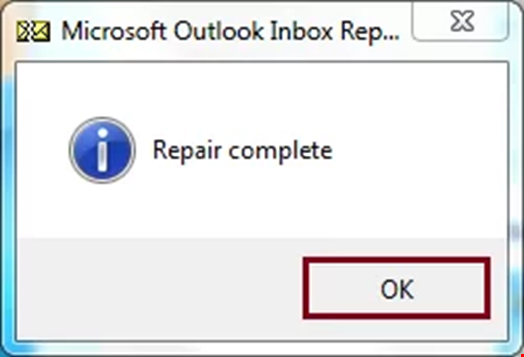
- After the completion of the repair process, check whether all email messages and other mailbox data are in order like before.
What if Everything Fails?
There is a high possibility that the above approaches may fail to Fix “Cannot Start Outlook / Cannot Open the Outlook Window,” error. It is so because these functionalities are capable of fixing only surface-level issues. Both resetting the navigation pane, and creating a new profile may fail to address severe corruption scenario. Even built-in ScanPST.exe may fail to address corruption rising due to an oversized PST or a malware attack. Such a complex scenario demands a professional Outlook PST repair tool. Such tools utilize superior algorithms. They can easily repair an encrypted data file (.pst). Tools like Stellar Repair for Outlook are developed to fix even the most complex corruption scenarios like a malware attack. Such tools are powered with a friendly GUI. They can repair even an oversized PST. They support data recovery even if the file is inaccessible.
Conclusion:
In the above post, we have explored causes as well as solutions to Fix “Cannot Start Outlook / Cannot Open the Outlook Window,” error. We have learned that manual methods are perfect for fixing issues involving minor to moderate corruption. But if the PST corruption is extremely complex, then the only remedy available to us is a professional Outlook PST repair tool. Experts strongly argue to utilize advanced tools like Stellar Repair for Outlook. This easy-to-use tool works even when Outlook fails to launch. It is capable of handling large PST files. Stellar also assures complete mailbox restoration. Additionally, it maintains the original folder hierarchy.